
How to get Dynapro Electronic Documents
For Business Central Online
If you have Business Central Online, you can get a free 30-day trial. Simply search for Dynapro Electronic Documents in Business Central, or find Dynapro Electronic Documents at Microsoft AppSource.
-
Once you have selected a free trial, search for and open the Dynapro Electronic Documents Setup page.
-
On the ribbon, select Register Trial Subscription. A notification will appear confirming that you now have a trial subscription.
Once you have selected a trial subscription, we will contact you and guide you through the onboarding process so that you will be able to receive electronic documents.
Note
To use Dynapro Electronic Documents, you need to be joined to PEPPOL. If you haven’t joined PEPPOL we can help you with that. What is PEPPOL?
For Business Central On-premises
If you are using Business Central On-premises, you can get a free 30-day trial or purchase the app. Contact us at post@dynapro.no and we help you with the installation process.
To purchase Dynapro Electronic Documents after the free 30-day trial, contact us at post@dynapro.no.
Setup
-
Once we have guided you through the onboarding process, open the Dynapro Electronic Documents Setup page.
-
Turn on the Enable Dynapro Electronic Documents toggle.
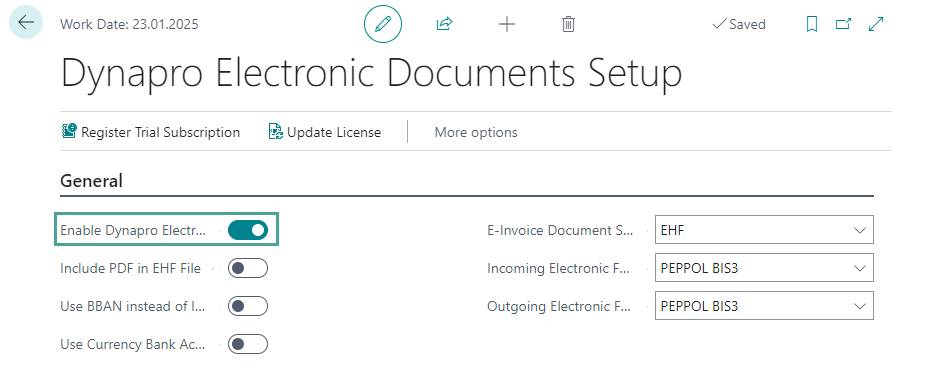
-
A dialog will appear asking whether you want to mark all existing and relevant documents as sent. This is to prevent documents from being resent automatically once the app is activated. To activate the app, you must select Yes (Note: You can always send documents manually that have a sent status).
-
Another dialog will appear asking whether you want to view the job queue entries that have been created that import and export electronic document files automatically. Select Yes.
-
The Job Queue Entries page will open and you will see five entries in the list.
-
Set the status of all five entries to Ready. To do this, select an entry in the list and, on the ribbon, select Set Status to Ready. Repeat this step for each entry.
Note
In the job queue entry list, the entry that contains the value Export Files under the Description field, is for enabling documents to be sent automatically. If you do not want documents to be sent automatically, set the status of the entry to On Hold.
To do this:
-
Select the entry and, on the ribbon in the three dot (ellipses) menu, select Set On Hold.
Now, documents will not be sent automatically.
You can now use Dynapro Electronic Documents in Business Central.
Enable documents to be sent automatically
(You may have already enabled documents to be sent using the Setup instructions above. If not, read the following instructions).
Once Dynapro Electronic Documents has been activated on the setup page, a job queue entry enabling documents to be sent automatically is created. To activate this setting, you need to set the status to Ready.
To do so:
-
Open the Job Queue Entries page (if you do not have permission to use the outbox in Business Central, you will need to ask someone that does to change the status).
-
Select the job queue entry where the Description field contains the value Export Files and the Job Queue Category Code field contains the value EDI.
-
Once you have selected the correct entry, select Set Status to Ready on the ribbon.
Documents are now set to send automatically.
Note
You can always prevent single documents from sending automatically by turning on the Prevent Automatic Sending action / toggle on the document page. For more information, see Sending Files.
Additional functions and how to set them up
Following are instruction for how to set up various additional functions for Dynapro Electronic Documents located on the Dynapro Electronic Documents Setup page.
Include PDF in EHF File
Creates a PDF file and sends it with the EHF file that is being sent.
-
On the Dynapro Electronic Documents Setup page, under the General heading, turn on the Include PDF in EHF File toggle.
Use currency bank accounts
Allows you to choose a default currency bank account, instead of the bank account defined in the company information.
-
On the Dynapro Electronic Documents Setup page, under the General heading, turn on the Use Currency Bank Accounts toggle.
Note
For this function to work, you need to:
-
have filled in the Currency Code field on the document being sent.
-
have a bank account for the currency on the document.
-
have turned on the Use as default for currency toggle on the bank account card.
Incoming sales orders
Enables Business Central to receive orders through PEPPOL.
-
On the Dynapro Electronic Documents Setup page, under the Incoming Sales Orders heading, turn on the Receive Incoming Orders toggle.
-
Then in the Sales Order No. Series field, select a no. series for the sales orders that will be received.
-
Open the Job Queue Entries page and select the job queue entry where the Description field contains the value Import Files.
-
On the ribbon, select Set Status to Ready.
Now, you can also set sales orders to be created automatically from EDI orders.
To do so:
-
On the Dynapro Electronic Documents Setup page, under the Incoming Sales Orders heading, turn on the Automatically Create Sales Orders From EDI Orders toggle.
Forward incoming invoices and credit memos to email
Specifies whether incoming EHF Invoices and Credit Memos should be forwarded to an email address.
-
On the Dynapro Electronic Documents Setup page, under the Incoming Invoices and Credit Memos heading, turn on the Forward Incoming Invoices and Credit Memos to Email toggle.
-
Open the Job Queue Entries page and select the job queue entry where the Description field contains the value Import Files.
-
On the ribbon, select Set Status to Ready.
Note
This function is relevant if you want to use XML Import in Continia Document Capture, for example.
Recipient email address
Once you have turned on the Forward Incoming Invoices and Credit Memos to Email toggle (above), you can enter an email address. Enter the email address you would like invoices and credit memos forwarded to, for example, a Continia email address if you are using XML Import in Continia Document Capture.
-
On the Dynapro Electronic Documents Setup page, under the Incoming Invoices and Credit Memos heading, in the Recipient Email Address field, enter the email address that you would like invoices and credit memos forwarded to.
Environment type
You can specify whether you would like Dynapro Electronic Documents set up for testing or production purposes.
-
On the Dynapro Electronic Documents Setup page, under the Environment Type heading, in the Environment Type field, select either Test or Production, based on your preference.